I am working on a certification - the ISTE Educator Certification. In the course, we examine the ISTE Educator standards in detail. In particular, I am reflecting on how I am exercising Digital Citizenship skills as a Digital Agent. Specifically, how am I "Mentor(ing) students in safe, legal and ethical practices with digital tools and the protection of intellectual rights and property."("ISTE Standards for Educators", 2017)?
Much written about Digital Citizenship has been more about protecting yourself or Do's and Don'ts. In the refresh of the ISTE Educator Standards, it is more appropriate to view Digital Citizenship as a opportunity to students to responsibly participate in our world.
A large portion of my job is spent creating instructions or tutorials to assist learners at my district use creative tools or purchased systems. In that sense, I am creating things that may contain images to illustrate or enhance a document. I need to model responsible use of anything that I use to ensure I respect intellectual rights of others and copyrights.
I examined a number of items I prepared for this school year and found that when it came to presentations, I always observed copyright and made strides in ensuring that all images were properly used. To do this, I often started looking for images at websites like Photos for Class or Unsplash. I must stress, though, that it isn't enough to use the image from the site like Photos for Class without examining the license closely. To do this, one must always find the original source of the image to determine the usage rights.
I often use resources that are licensed under Creative Commons. What's great about these licenses is that anyone can label their content with a license to let people know exactly how the image should be used. This is a powerful way to share your work so that others can use it.
Wanna Work Together? from Creative Commons on Vimeo.
Something that is common among all of the licenses is that one should attribute the original source and author. This is something that should NOT BE FORGOTTEN and should be consistently practiced when using others' content.
In looking over presentations I have given, I have done pretty well with this!
However, when looking at tutorials I create about online tools used at my district, I have been a little lax with this. For the most part, I am showing images of online pages of proprietary software. I will investigate proper attribution with the companies to ensure I am giving proper attribution.
In addition, sometimes I have copied support articles word for word to help create more condense versions of FAQs for staff. I need to examine how to do this without infringing on copyright. On the one hand, I am creating something more usable for staff. However, this is not modeling proper attribution and responsible usage of someone else's intellectual property.
Overall, this was a useful check to ensure that I am modeling the "safe, legal and ethical practices with digital tools and the protection of intellectual rights and property."
Sources:
ISTE Standards for Educators. (2017). Retrieved May 30, 2019, from https://www.iste.org/standards/for-educators
Thursday, May 30, 2019

Monday, January 8, 2018
Schoology Assessments Unveiled!

Create assessments in your Schoology course to assess your students' grasp of the material or evaluate their preparedness for class. Each assessment is automatically graded (unless you've included a subjective question, such as a short answer/essay), providing you with instant and powerful feedback that can help guide your upcoming lesson plans.
Why would you want to start using Assessments? Schoology Assessments is the next generation of the Quiz/Test tool and provides the following:
- 7 new enhanced question types (along with the ones we already have)
- accessibility features (change color scheme, font size, zoom)
- more optional tools for students (calculator, protractor, etc)
- more options for students (ability to eliminate choices, ability to flag questions for review)
- and more!
Yes, you can. Both the Test/Quiz tool and the Assessment tool will appear under the Materials area. However, eventually the Schoology Assessment tool will replace the Schoology Test/Quiz tool.
When will the TestQuiz tool go away? Schoology has stated publicly that this will happen a little while after the Schoology Assessment tool contains the features it is currently missing as it is still being developed.
What will happen with the Test/Quiz questions you have already created?
Schoology has promised a tool that will convert your Test/Quiz questions into the Assessment format. This should be coming out sometime in 2018.
What are some of the items that are not yet available in Schoology Assessments?
- No ability to record audio/video yet
- No ability to import questions/save questions to question bank yet
- No printing options
- No ability to time individual questions (but ability to time overall quiz is there)
- No language keyboards yet
- Limited insert menu
More Information
- To get more information about Assessments, check out the following:
- BASD Assessment Announcement video
- Official Schoology Assessment guide here
- Schoology YouTube Playlist on Assessments: https://youtu.be/Uv_zbk81nCY
Friday, September 15, 2017
Top 3 Ways to Integrate Schoology and Google
With the adoption of the Schoology Learning Management System (LMS) at BASD, many teachers kicking the tires on the integration of Schoology and Google. They are counting on the promise the the two systems will work well together. While the two systems are managed by two different companies, they have made some great strides in working together. But sometimes things CAN go wrong.
Top 3 Ways to Integrate Schoology and Google
It is projected to be compatible with the Schoology Mobile app in October of 2017.


Here is video on how to clear these messages and get it working again!
Top 3 Ways to Integrate Schoology and Google
1. Have your students set up to the Google Resource App so they can pull directly from their Google Drive!
This works great on Chromebooks and eliminates a lot of steps. In fact, they can CREATE Google Documents in the Google Resource App (under their Resources Menu > App). Here are some instructions on how to do that!2. Utilize the Schoology Drive Google Assignment tool to distribute Google Documents to your students and access their work during the creation process!
At our district, it has already been installed in all courses. Here are directions on how to get started! This document approaches it from a teacher and student perspective. Here is a Schoology support page about the functionality and some things to keep in mind.It is projected to be compatible with the Schoology Mobile app in October of 2017.
3. Get the Browser Settings Right for Google.
Have your students been seeing these message when THEY try to access the Google Drive Assignment or the Google Drive Resource app? Make sure third party cookies are NOT being blocked in your browser if planning to use the Google integration in Schoology. Check out how to unblock them here. If they are being blocked, there will be error messages in both the Schoology Drive Assignment tool AND Google Drive Resources app.
NOTE: If teachers see the access denied message when accessing an assignment and third party cookies are enabled, there could be another explanation for that.


Here is video on how to clear these messages and get it working again!
BONUS! 4. Check out Schoology's FAQ About Google Drive Assignments in Schoology!
Friday, May 26, 2017
Leaders Can Be Anywhere
In my line of work as a Technology Integration Specialist in a public school district, I work with a lot of great teachers. There are forward-thinking projects going on school wide as well as pockets of innovation in each department or classroom. One of the most powerful ways to convey a message about innovative learning strategies is to have a teacher share about what they are doing in their classroom. Why? Because the strategy is explained in a honest to goodness real life context - the good, the bad and the ugly. Very often a teacher tells an anecdote about how it has made a difference in their classroom or in the life of a kid. Teachers sharing experiences with each other is often the most powerful way to instill change of practice or innovation in classrooms.
I make it a habit to ask teachers to share what's going in their classrooms to inspire other teachers to utilize that strategy or tool. Sometimes when I ask some teachers to share their experiences to other teachers, they are very reluctant to do so. Sometime the venue affects their feelings ("In front of the ENTIRE faculty?! No way!"). Most often they construe sharing what's going in their classroom as "bragging". Or they predict their colleagues will think less of them BECAUSE they shared what they are doing.
At face value, it doesn't seem to make sense. I liken this situation to where a student in a class creates an amazing project. Educators would want them to share what they learned, how they did it, etc. But for a student, sharing this kind of information with their peers runs counter to what they are told to do. Keep to yourself. If you try to look good, you must be trying to gain favoritism with someone.
Unfortunately, we live and work in a community that touts great achievements but douses individuals who try to share good things that they do every day.
I make it a habit to ask teachers to share what's going in their classrooms to inspire other teachers to utilize that strategy or tool. Sometimes when I ask some teachers to share their experiences to other teachers, they are very reluctant to do so. Sometime the venue affects their feelings ("In front of the ENTIRE faculty?! No way!"). Most often they construe sharing what's going in their classroom as "bragging". Or they predict their colleagues will think less of them BECAUSE they shared what they are doing.
At face value, it doesn't seem to make sense. I liken this situation to where a student in a class creates an amazing project. Educators would want them to share what they learned, how they did it, etc. But for a student, sharing this kind of information with their peers runs counter to what they are told to do. Keep to yourself. If you try to look good, you must be trying to gain favoritism with someone.
Unfortunately, we live and work in a community that touts great achievements but douses individuals who try to share good things that they do every day.
Friday, September 16, 2016
Zooming Settings on Chromebook Deconstructed
Has your Chromebook screen magnified to the point where you no longer see the menu in the lower right hand corner? And it is difficult to use the computer?

No fear! The accessibility settings are probably set to Zoom the screen. This CAN be fixed.
NOTE: The zoom setting will be enabled wherever the account is logged in (on a chromebook). Therefore, if a student has the zoom setting turned on in their Google account, the zoom setting will be enabled wherever they sign on (Chromebook with the same Google account). Therefore, the student will need to log in and turn off the zoom setting.
- Using the Chromebook track pad, scroll the screen contents down and to the right until you see the menu in the lower right corner of the screen. Warning: this will be the most frustrating part about the process as it's difficult to maneuver. It may take you a few tries to do this.

- Then, click on the profile picture or icon in the lower menu. Click on the Accessibility label/arrow. It will have a little hand next to it.

- Uncheck the Zoom setting and any other setting you do not wish to have turned on.
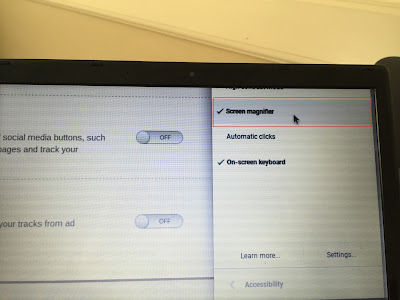
- The computer should no longer have the zoomed screen at this point.


Friday, May 6, 2016
How To Make Google Mail Your Default Mail Program (or How To Stop Mac Mail From Opening When You Click an Email Address)
Many of the high school staff at our district have switched from using the Mac Mail.app program on their computers to using their web browsers to access their district email. In fact, the BASD ISD Department is urging all staff to move to this way of accessing their school email.
However, I ran into a couple of teachers this morning that said it was really inconvenient when they click on an email address to email someone and it opens up the Mac Mail program instead (when they are using Google Mail in the browser). Does that sound familiar?
Here is how to change it so that your email opens up in the browser instead!
1) Open up the Mail.app program on your computer.
2) Click on the Mail Menu > Preferences. You should go right to the General tab in Preferences.
3) Where it says, Default Email Reader, it probably shows Mail. See below.

4) Click on the drop down and select Google Chrome in the drop down (or Firefox, although Chrome is recommended) to be the new Default Email Reader.
5) NOTE: if Google Chrome does not appear as a choice, click on the Select... choice at the bottom and search for Google Chrome in the next window. Then click on the Select button.

6) Now, Google Chrome (or Firefox) should appear as the Default email reader.

7) Quit the Mail.app program. When you click on a link like this: ezundel@basdschools.org, it should open up your Google Mail in the browser you chose.
Hope this helps!
Sunday, March 27, 2016
Becoming Connected Is Personal and a Challenge. Please Make It FUN!
Wow. We just finished our first Twitter Challenge (#BASDChallenge) in my district and all I have to say is: gamification in professional learning can motivate teachers!
I didn't invent the Twitter Challenge - read about how do your own here!
Connecting is Personal
Becoming a Connected Educator is a highly personal journey. Over the past year, I have been trying to gather interest in creating PLNs and PLCs in the high schools that I support. I have had a few die hard teachers attend my trainings and participate in Connected Educator Month. Connecting teachers together can transform your school. But until they experience it for themselves, it is a really abstract concept and frightening. When I tried to help teacher "set goals" about how PLNs to could help them grow professionally I got mixed stares. It was as if they were thinking, "Ok, this WAS fun! Please don't ruin it with goals!" I've heard PLN spelled out as Personal Learning Network or Professional Learning Network. After working with teachers, I am going to stick with Personal Learning Network.
Like Sheryl Nussbaum-Beach has often said, teachers have to be learners first in order to recharge and evolve as educators. I have found there is an a-ha moment with Twitter once the person understands the parameters of the tool and THEN connects with other educators. But until then, baby steps. We need to walk (tweet) before we can run (a Twitter chat).Teachers Have to Be Learners First
Make It Fun!
My training is normally well received by teachers at my district. I make all of my trainings to be available online (synchronously or asynchronously) or in person. I'd say most of the teachers opt for the online training as their lives are so full and busy. The last training was completely online as teachers took part in a 15 Day Twitter Challenge. It was a hit! While we had roughly 40 teachers participate across the district, I would receive inquiries on joining it due to an excited colleague that was participating. Before we started, I informed teachers they would be recognized and have a chance at a prize if they participated in each of the tasks. Some teachers asked if they were still receiving recognition because they couldn't complete one of the tasks on time. And some teachers even taunted each other on Twitter because THEY wanted to win the prize at the end. I wondered if the gamification would turn teachers off. Well, it looks like the pilot was a success so I am investigating how to gamify my other trainings for next school year.
I didn't invent the Twitter Challenge - read about how do your own here!
Thanks for making the #BASDchallenge so enjoyable! #FF @ezundel @therealgnolf @LisaGilliard22 @KathyCorpora @MrsGreenGifted— Carole Schachter (@cschachter) March 18, 2016
Monday, March 14, 2016
Our Goals, Your Goals
I never planned on fostering so Connected Educator activities at once. But it's timely as we are seeing the flowers bloom and the temperatures rise. Being connected using social media makes it so apparent that we have many teachers blooming with ideas in our district.
The first ever Twitter Challenge (#BASDChallenge) is in full swing. It's only Day 8 out of 15 so you have time to get started and get in on the awesome collaboration taking place! Each participant who completes the 15 tasks (daily) will be recognized in both a digital and analog format AND will be entered to win a prize!
Some example tweets on the #BASDChallenge so far from the high schools:
In the Connected Educator Book Club, we are reading is The Connected Educator: Learning and Leading in a Digital Age by Sheryl Nussbaum-Beach and Lani Ritter Hall. We laid the ground rules (and future dates) and talked about goals at our first meeting last week.
Some of the stated goal from our first meeting were:
To help students to understand how making the right connections will benefit them.
Do any of these goals resonate with you? Check us out - connect with me and I'll fill you in. It's not too late to join the club!
Future Meeting Dates for the LHS Connected Educator Book Club:
The FHS chapter will have their first meeting this Wednesday at 3:45-4:45PM in the FHS Library.
The first ever Twitter Challenge (#BASDChallenge) is in full swing. It's only Day 8 out of 15 so you have time to get started and get in on the awesome collaboration taking place! Each participant who completes the 15 tasks (daily) will be recognized in both a digital and analog format AND will be entered to win a prize!
Some example tweets on the #BASDChallenge so far from the high schools:
@ezundel Read it. Loved it. #BASDChallenge is definitely the right kind of step to help promote self efficacy in our teachers.— Anthony Markovich (@LHSMarkovich) March 13, 2016
Check out the Twitter Challenge list on bit.ly/basdchallenge if you want to join in the fun!#BASDChallenge My students use Google docs frequently, and I love new features. Check it out. https://t.co/E4Oo1AaijM— Linda Jolly (@LjollyLinda) March 13, 2016
In the Connected Educator Book Club, we are reading is The Connected Educator: Learning and Leading in a Digital Age by Sheryl Nussbaum-Beach and Lani Ritter Hall. We laid the ground rules (and future dates) and talked about goals at our first meeting last week.
Some of the stated goal from our first meeting were:
To help students to understand how making the right connections will benefit them.
To make connections with other teachers/thought leaders to grow professionally.
To connect with other teachers in the same discipline across the district and the world to curate resources and wisdom.
To connect with others to position myself better as an educator.
Do any of these goals resonate with you? Check us out - connect with me and I'll fill you in. It's not too late to join the club!
Future Meeting Dates for the LHS Connected Educator Book Club:
- March 29 - 3:30-5:30 - LHS Library or online via Google Hangout
- April 26 - 3:30-5:30 - LHS Library or online via Google Hangout
- May 31 - 3:30-5:30 - LHS Library or online via Google Hangout
The FHS chapter will have their first meeting this Wednesday at 3:45-4:45PM in the FHS Library.
Thursday, February 25, 2016
True Confessions of a Connected (Math) Teacher
I had the opportunity to connect with another Connected Educator, Mark James (@mdjames67), at the Pennsylvania Educational Technology Expo & Conference in 2015. He gave a session on using Google Apps with Math. What struck me the most about Mark was not the math instruction techniques or cool tools. I was impressed and extremely interested in the other math teachers he mentioned during the presentation. One that figured prominently was Dan Meir. Look him up if you don't follow him. He was a Math teacher, now the Chief Academic Officer of Desmos.
Educators are trying their best to do one main thing: Help Kids Learn™. We each take a different role whether it be that of a classroom teacher, an administrator that keeps the school running smoothly or an educational coach that helps teachers get better at this one thing. We are part of a team.
Connecting to other educators that are doing things differently or better is one of the most important thing a teacher can do. While their classroom is their domain, it is a challenge to maintain the stamina of Help(ing) Kids Learn™ in a vacuum.
Yesterday, Mark came to one of my high schools to talk about how he has made connections through Twitter to help him through discouragement and this amazing time where there is so much to play with but so little time.

Using Angela Watson's blog post to guide the presentation (and a really cool demo of Pear Deck!), he walked us through the top 4 reasons why educators do not connect (but how they can overcome them).
Educators are trying their best to do one main thing: Help Kids Learn™. We each take a different role whether it be that of a classroom teacher, an administrator that keeps the school running smoothly or an educational coach that helps teachers get better at this one thing. We are part of a team.
Connecting to other educators that are doing things differently or better is one of the most important thing a teacher can do. While their classroom is their domain, it is a challenge to maintain the stamina of Help(ing) Kids Learn™ in a vacuum.
Yesterday, Mark came to one of my high schools to talk about how he has made connections through Twitter to help him through discouragement and this amazing time where there is so much to play with but so little time.

Using Angela Watson's blog post to guide the presentation (and a really cool demo of Pear Deck!), he walked us through the top 4 reasons why educators do not connect (but how they can overcome them).
- I don’t want to spend my free time thinking about school. (But do you have time to think about what made you excited about teaching in the first place?)
- I don’t think it’s necessary/I didn’t know I needed a PLC. (The way to breathe new life into your teaching is to tap into your inner motivation and connect with the things, people, and ideas that matter to you). Yeah, I quoted that from Angela Watson but it was so good that I had to include it.
- I don’t have time. (How much time do we spend on things that are time wasters? Why not make your job easier by connecting for a few minutes instead?)
- I don’t know how. (No worries, the Twitter Educator community has your back. If not, Jerry Blumengarten, self-appointed Cybrarian).
Interested in Mark's talk?
We have a recording of the first session here. Please check it out but please pardon our sweatshirts and sweatpants as we had PD from home on a snow day!Interested in getting Connected or learning more about it?
Well, we can help you with this!- On March 1 (Liberty High School) and 2 (Freedom High School) I will be hosting Growing Professionally with Twitter workshops. These can be completed online as well.
- On March 7, we will begin a 15 Day Twitter Challenge (including our own #BASDChallenge Twitter Chat)!
- On March 8, we will have our first Connected Educator Book Club Meeting. Our first book will be Sheryl Nussbaum-Beach's The Connected Educator: Learning and Leading in a Digital Age. We'll set the parameters for the club and the first 8 lucky people will get a book on loan to use during the book club.
For Bethlehem Area School District teachers, please sign up on CPE Tracker for these sessions. If you are from outside the district but are interested, please contact me if any of these topics interest you!
Saturday, February 13, 2016
Tuesday, February 2, 2016
Snowy Day Professional Development
If you live or were visiting the East Coast of the United States on January 23, 2016, you were caught in a historic snow storm that crippled transportation, closed schools and provided enough snow for kids to play with for days and days.
I had planned a special Connected Educator event at one of the schools where I work entitled, "True Confessions of a Connected Educator". I asked Mark James, a Broughal Math teacher, to share his experiences of being a connected teacher as has been featured on the Connected Educator website in the past (www.connectededucators.org) . We were scheduled to have the event in person at Liberty High School and online three days after the storm. Since our district's schools were closed on the day Mark was to speak, it was evident that we'd have to cancel the in person event.
However, meeting online from the comfort of our own homes was still possible so we decided to hold the event online. We used Google Hangouts -- it was a blast! Five Bethlehem Area School District staff gathered online to learn on a snow day! Two classroom teachers, one counselor, one administrator and one Tech Integration Specialist were in attendance.

In many ways this was not remarkable at all. Thousands of teachers have access to PD anytime and anywhere each day as they use social media tools to connect to one another. However, it was noteworthy in that our school district has not had many professional development events occur on a snow day!
We have rescheduled Mark to come to Liberty High School in person on February 24, 2016 from 3:45-4:45PM. I'm crossing my fingers that we do not have any more snow, but know that we can always meet again online if the circumstance allows!
I had planned a special Connected Educator event at one of the schools where I work entitled, "True Confessions of a Connected Educator". I asked Mark James, a Broughal Math teacher, to share his experiences of being a connected teacher as has been featured on the Connected Educator website in the past (www.connectededucators.org) . We were scheduled to have the event in person at Liberty High School and online three days after the storm. Since our district's schools were closed on the day Mark was to speak, it was evident that we'd have to cancel the in person event.
However, meeting online from the comfort of our own homes was still possible so we decided to hold the event online. We used Google Hangouts -- it was a blast! Five Bethlehem Area School District staff gathered online to learn on a snow day! Two classroom teachers, one counselor, one administrator and one Tech Integration Specialist were in attendance.

In many ways this was not remarkable at all. Thousands of teachers have access to PD anytime and anywhere each day as they use social media tools to connect to one another. However, it was noteworthy in that our school district has not had many professional development events occur on a snow day!
We have rescheduled Mark to come to Liberty High School in person on February 24, 2016 from 3:45-4:45PM. I'm crossing my fingers that we do not have any more snow, but know that we can always meet again online if the circumstance allows!
Saturday, January 30, 2016
GAFE (weekly)
-
Google Classroom Cheat Sheet - Google Slides
Google Classroom Cheat Sheet #hyperdoc #tosachat #gafe #gafesummit #cuerockstar @TsGiveTs https://t.co/szEJmRJTZQ https://t.co/HKJQuhTgLp
Tuesday, January 26, 2016
Formative Assessment with Socrative
There are numerous free, online formative assessment tools available to teachers to use today. Most of them require each student to have a device, some require students to download an app and some work better with Google Apps. Through a few blog posts here, I hope to both give you the good, the bad and the reality. Hearing how other teachers are using tools in their classroom provides some "realism" to the hype about a tool.
Mr. Michael Gori, an English teacher at Liberty High School, has been using Socrative since the 2014-2015 school year. Teachers can create a free class account where they can create online quizzes (multiple choice, short answer, true/false) exit-ticket and more. The quizzes can be saved for reuse or even shared with other teachers who are also using Socrative.
The tool can be used in various ways. It can be teacher-paced for the purposes of a large group review, student-based where students receive immediate feedback (but they must answer questions in order) or student-based where students can skip to the next question and return later. The latter scenario is great when using the tool to give small quizzes. Student names and feedback can be turned off while question and answer order can be randomized.
According to Mike Gori, the reporting features are one of the reasons he finds the tool useful for his classroom. When giving a student-based activity, the teacher has access to a live dashboard to review student answers. The color coded look helps teachers scan correct and wrong answers. In addition, the class percentages help the teacher spot problem questions or areas where reteaching is needed.
Specifically, Gori says that using a tool like Socrative can help teachers give feedback to students to help them know what it is that they don't know so they can focus attention those problem areas. Earlier this school year, he used Socrative to assess their knowledge about characters of a play. Students received feedback on whether they needed to reread some of the material in order to be ready for the rest of the subsequent lessons.
Mr. Michael Gori, an English teacher at Liberty High School, has been using Socrative since the 2014-2015 school year. Teachers can create a free class account where they can create online quizzes (multiple choice, short answer, true/false) exit-ticket and more. The quizzes can be saved for reuse or even shared with other teachers who are also using Socrative.
The tool can be used in various ways. It can be teacher-paced for the purposes of a large group review, student-based where students receive immediate feedback (but they must answer questions in order) or student-based where students can skip to the next question and return later. The latter scenario is great when using the tool to give small quizzes. Student names and feedback can be turned off while question and answer order can be randomized.
According to Mike Gori, the reporting features are one of the reasons he finds the tool useful for his classroom. When giving a student-based activity, the teacher has access to a live dashboard to review student answers. The color coded look helps teachers scan correct and wrong answers. In addition, the class percentages help the teacher spot problem questions or areas where reteaching is needed.
 |
| Sample Live Results Dashboard during a Quiz |
Specifically, Gori says that using a tool like Socrative can help teachers give feedback to students to help them know what it is that they don't know so they can focus attention those problem areas. Earlier this school year, he used Socrative to assess their knowledge about characters of a play. Students received feedback on whether they needed to reread some of the material in order to be ready for the rest of the subsequent lessons.
Features that make Socrative stand out
- Integration with Google Apps. Students can use Google to sign in. Teachers can link their Google Drive to the Socrative site so they can export class reports directly to their Google Drive.
- Report options. Teachers have the ability to create PDF reports for individual student progress, whole classroom results to Excel or Google Drive, and PDF report of each question's statistics.
- Space Race game. Teachers can gamify their quizzes to use with the Space Race tool to make a competition within their classroom.
The details
- Is there an app? There is a teacher app and a student app for both Android and iPhone.
- Does every student need a device? All students should use their own device. Teams could be formed if you do not have devices for each student. Mobile devices work with the website.
- Do the students need to create an account to use it? No. But they may sign in with Google. When students sign in, you can keep track of student past performances.
- Can content be shared with other teachers? Yes! No need to reinvent the wheel if you want to share an activity with a colleague also using Socrative.
Common Sense Graphite has a detailed review of Socrative as well. Check it out here!
Friday, January 8, 2016
By Any Means Necessary
I participated in Connected Educator Month pretty heavily in 2015 since it spoke to one of my central missions/visions as a Technology Integration Specialist: I want to empower educators to take charge of their professional learning by using social media (really, any means necessary...).
After Connected Educator Month was over, I met with teachers who participated from one of my high schools to do a debriefing session. Here is the agenda from that meeting.
The level of participation varied among attendees at this session. Some came to learn more about what a Connected Educator is. Others were rock-stars rocking the PLN world with social media (such as @therealgnolf ) What participants had in common was the desire to learn how others were using social media to find educational resources and make connections with other educators.
Here were some of their a-ha moments from the session:
What I found interesting during this session was the emphasis on the visual tools that teachers were looking at (instead of the usual tools such as Twitter). While I would highly recommend Twitter for teachers getting started, it's important to note that there million tools that could be used to connect with other teachers that venture outside the format of a 140 character message.
Pinterest was discussed at length. While I used Pinterest to plan my wedding two years ago and currently use it to store great recipes or pictures of cute hair cuts for my stylist, I could definitely see why it was popular among the teachers at my school. Pinterest and flickr are great tools for creating digital portfolios.
One of the Connected Educator activities in the Starter Kit was to use Digital Storytelling to express a point of view. This also drew a bit of interest and is made easy with our access to Google Apps (and Youtube.com Editor tool).
Did you participate? What were your big a-ha moments? Please share on this #ce15 padlet wall.
After Connected Educator Month was over, I met with teachers who participated from one of my high schools to do a debriefing session. Here is the agenda from that meeting.
The level of participation varied among attendees at this session. Some came to learn more about what a Connected Educator is. Others were rock-stars rocking the PLN world with social media (such as @therealgnolf ) What participants had in common was the desire to learn how others were using social media to find educational resources and make connections with other educators.
Here were some of their a-ha moments from the session:

What I found interesting during this session was the emphasis on the visual tools that teachers were looking at (instead of the usual tools such as Twitter). While I would highly recommend Twitter for teachers getting started, it's important to note that there million tools that could be used to connect with other teachers that venture outside the format of a 140 character message.
Pinterest was discussed at length. While I used Pinterest to plan my wedding two years ago and currently use it to store great recipes or pictures of cute hair cuts for my stylist, I could definitely see why it was popular among the teachers at my school. Pinterest and flickr are great tools for creating digital portfolios.
One of the Connected Educator activities in the Starter Kit was to use Digital Storytelling to express a point of view. This also drew a bit of interest and is made easy with our access to Google Apps (and Youtube.com Editor tool).
Did you participate? What were your big a-ha moments? Please share on this #ce15 padlet wall.
Thursday, October 29, 2015
My Reflections on Connected Educator Month 2015

Some of my takeaways from Connected Educator Month 2015 that I would like to share:
There are so many ways to connect with others using social media, but only a few ways that may stick with you. And that's OK!
The ways that someone can connect with others to learn are endless. The Connected Educator Starter Kit gave us a number of tools to try. Twitter is heavily covered as well as using Blogs and Web 2.0 tools of all kinds.
I personally find Twitter to be my tool of choice. I can open up my Twitter feed anywhere - computer, phone or iPad - and find a nugget of wisdom lurking in my feed. However, Twitter may not be your "cup of tea". And that is why the P in PLN stands for Personal. There are plenty of other tools and communities out there that may speak to you. So which tool should you choose? Having so many choices can sometimes be daunting. My advice is to dive in and test it out. Give one tool a little bit of time. If it doesn't meet your needs, move on to something else. The Edublogs PLN Teacher Challenge is a great resource to get you started on some of the most popular tools like Twitter as well as explore some others (Diigo, Nings, Flipboard). If you are interested in starting a blog, here is a great tutorial!
I personally find Twitter to be my tool of choice. I can open up my Twitter feed anywhere - computer, phone or iPad - and find a nugget of wisdom lurking in my feed. However, Twitter may not be your "cup of tea". And that is why the P in PLN stands for Personal. There are plenty of other tools and communities out there that may speak to you. So which tool should you choose? Having so many choices can sometimes be daunting. My advice is to dive in and test it out. Give one tool a little bit of time. If it doesn't meet your needs, move on to something else. The Edublogs PLN Teacher Challenge is a great resource to get you started on some of the most popular tools like Twitter as well as explore some others (Diigo, Nings, Flipboard). If you are interested in starting a blog, here is a great tutorial!
Connecting with other educators can be amazing.
Great activities involving other connected educators reenergize me. I participated in an #edtech Twitter chat on October 26, 2015 hosted by Arne Duncan. Knowing that someone who has a hand in shaping education policy was listening to our answers made me feel like I was part of something really important. During that short time, I was part of a national conversation about student learning. I was wired for the rest of the evening! These types of interactions are not unique - they are happening daily (hourly) on Twitter chats around the country/world. Here is a list of educational Twitter chats by topic/day/time.
Becoming a Connected Educator is a work in progress.
While I consider myself connected, it didn't happen overnight. I started forming my PLN in 2013 and feel like I have just scratched the surface. Don't be discouraged if you just started this journey and are still trying to understand it. You have only just begun and will start to see results over time. When you start, many people mostly read and would be considered "lurkers". Even during this time, you are learning how the particular network works. If you are connected with great people, you are exposed to great resources. Where you start to see the greatest gains are in the interactions between yourself and others in your PLN.
And if you think you have it all down pat, read a bit of Will Richardson. Will is one of the most provocative thought leaders in education today. In this interview, he mentions literacy in using the tools appropriately, safety in knowing who you are connected to, diversity of opinions in your PLN and ethics in using these tools. So no matter how long you have been connected, there are still areas for growth.
Monday, October 12, 2015
Are You Holding Back On Something Too Obvious to Share?

I've always thought that I should be blogging more. By the number of posts on this particular blog, you may see why. But I have learned three basic things that I keep in mind to encourage me to blog and share more.
Truth 1: You just need to start blogging. Just. Do. It.
I know that I need to work on my writing skills. When I was younger, I wrote short stories, poetry and other things when I knew that only a few people were going to be reading them. I wasn't afraid to pass it to my best friend who just wanted to read it for the exciting tales I would tell. Writing for an audience takes it to a whole other level. We want it to be great. We want it to go over well. That's why we push our kids to write for an audience - to up their game and put out a better product.Well some of us get are daunted by expressing our opinions on a very public way. Blogging seems scary to some of us. But the secret to getting better is you just have to do it. The more you read other blogs and the more you write, the better you get.
My husband is a writer and writes on his own blog a lot. One of the most common questions aspiring writers ask is how they can be a better writer. More or less the answer given is usually, "Read more. Write more." Just do it!
Truth 2: Everyone has something to share. Really.
Yes, we all have something to share. Our vantage points are valuable, believe it or not. There have been whole articles written about this. In this book, "Anything You Want", Derek Sivers talks about the "Obvious to You. Amazing to Others." Check out Derek's video here. Your experiences are valuable, trust me!Truth 3: Writing about your experiences helps you reflect. This is big.
Those who blog regularly say they reflect more about their professional practices and philosophy. Here's an article about it as well. Because your reflections are now made publicly available on a blog, you also have the opportunity to hear from other educators in the form of feedback. Connecting with other educators promotes learning something TOGETHER. My personal belief is that I learn things more deeply and completely when I learn about it with someone else.
So what are you waiting for? Go get your own blog today!
Sunday, October 4, 2015
Transform Your Classroom (and Yourself) by Being a Connected Educator
 |
Highlights of CEM 2014 included:
- hosted 800 events during the month,
- mentioned on 6 million web pages,
- reached educators in 139 countries and
- every two days counted 15 million tweets.
So, who would benefit from participating in CEM? EVERYONE! No matter where you are on the "connected" spectrum (true beginner, adept, expert) there are activities and tools that may benefit you! Even if you are not an educator, learning the basics of becoming connected to others in your industry will greatly benefit you personally and professionally.
For beginners, I would suggest downloading the Connected Educator Starter Kit. It is chock full of introductory activities that will get you started. By no means are you expected to do all activities (31 Days worth)! Instead, pick out the items that interest you. I highly recommend Days 1-4 for beginners. You'll create a professional Twitter account and start to find content related to your interests. Days 15 and 16 help you start a blog where you can reflect on learning and teaching.
For those who have already dabbled in using tools such as Twitter, Youtube, a blog or other Web 2.0 tools, I also recommend the starter kit as you may pick up some new tips. On Days 7, 8 and 9, you'll explore using Digital Storytelling to connect with others. I encourage you to also check out the hundreds of events taking place throughout the month.
Participate now and connect with thousands of other educators in this huge initiative. Connected Educator Month (October) is only the beginning. You can direct your own learning whenever and wherever you want.
If you are an educator at Bethlehem Area School District, you have the opportunity to earn BFLEX hours for participating in CEM. Contact Evon Zundel for more information.
To follow on Twitter, follow the hashtag #ce15 or @edconnectr.
Tuesday, April 7, 2015
In the Cloud

Yep, I had one of those days on Monday. I walked into my office, turned on my computer and what I saw next made me sigh. It was the circle/slash symbol on my Mac laptop as it was starting up. But I didn't feel the dread of discovering that I had lost my data. On the contrary, nearly EVERYTHING save about ten documents (that have to be in Word format for now) I use on a daily basis is IN THE CLOUD. The reason I was disappointed was that I did not have a spare computer available to immediately continue working. I actually felt angst since I knew I COULD be working on something, but had to hunt for an available workstation or laptop first.
Some may say, "Wow, that's scary! Aren't you afraid that your stuff is somewhere else?" Actually, I am not. My information is in my Google Apps account. From Google's Security page:
Google maintains a number of geographically distributed data centers. Google’s computing clusters are designed with resiliency and redundancy in mind, eliminating single points of failure and minimizing the impact of common equipment failures and environmental risks. Access to our data centers is restricted to authorized personnel.How did I start working in the Cloud? I did the following:
- Use Google Drive to store all of my documents, spreadsheets and presentations. In addition, I can create surveys and automated quizzes using Google Forms.
- Use Google Calendar to keep track of all of my appointments. In turn, I can access the school's Google calendar to stay up to date on events.
- Use Google Mail in Chrome to manage my email inbox.
- Use Google Plus to store photos and photo albums
I still use iTunes. But my personal music is in my iTunes account or backed up on my personal computer at home. I use Time Machine to back up my personal Mac to a USB Hard Drive.
Did I achieve this overnight? Some could switch cold turkey, but not me. No, it took me a while (about a year) to migrate my information over to Google. But I consider it time well spent since I am no longer tied to a specific computer to be productive. I can log into a PC, Mac, or Chromebook anywhere I have an Internet connection to access my information.
Interested in moving to the CLOUD? Here are some places to start learning how:
Did I achieve this overnight? Some could switch cold turkey, but not me. No, it took me a while (about a year) to migrate my information over to Google. But I consider it time well spent since I am no longer tied to a specific computer to be productive. I can log into a PC, Mac, or Chromebook anywhere I have an Internet connection to access my information.
Interested in moving to the CLOUD? Here are some places to start learning how:
- Google Drive - Ed Tech Challenge's tutorials on storing things in Google Drive - http://www.edtechchallenge.com/one/1-3-store-and-share-files
- Google Calendar - Google Calendar's Help Center
- Google Mail - Getting Started Guide
- Google Plus - Google Plus Help Article
Tuesday, February 17, 2015
Google Myth #3 Debunked - I can't do labels in Google Docs
Oh, this is so not true! There is a handy Avery Google Add-On called Avery Label Merge! Open a Google Document and go to the Add-Ons menu. Select Manage Add-Ons.

Search for Avery. Your search should turn up Avery Label Merge.

Give the Avery Label Merge Add-On permission to access your account.

To get started, click Add-ons > Avery Labels Merge > New merge. You will be prompted to choose Labels or Name Tags.

You will then be prompted to choose a layout from the most commonly used labels on the market. Not all labels are available, however.

Then, pick the Google Sheet that contains your data for the labels. It is helpful to put column headers in your sheet.

A Google document will be created with detailed instructions and the label area where you will be formatting your data.

Click on the Column header names to format them in the label area in the document. You may change the label layout, spreadsheet and sheet within the spreadsheet and the rows where you data resides. Click on the blue Merge button.

A new Google Doc will be generated with your labels. Click on Open on the next dialog box to get to your labels!

Google Myth #2 Debunked - Google Docs doesn't have any clipart
On the contrary, Google Docs has it better! There are at least three ways that you can find pictures to use in your next document.
ONE: Insert Menu
In Google Docs, Sheets or Slides , go to Insert > Images . There is an option to upload, take a snapshot or link from your Google Drive. In addition, you can search Google Images, Time Magazine or Stock Images for your photo!

TWO: Research Tool
In Google Docs, Sheets or Slides, go to Tools < Research. Type in your search parameters and use the Images filter to quickly locate your prized photo. Then drag the photo over into your document! Voila!

To narrow your search to images that are free to use, share, modify, even use commercially, click on the arrow below the search box to reveal the filter tools.

THREE: Open Clipart Add-On
For those who like drawings to add to their documents, there is yet another way to import clip art! Go to a Google Document and click on the Add-On menu. Select Get add-ons... option to locate the Open Clipart Add-On for Google Docs.

Search for Open Clipart and click on Free to add it.

Give the Add On permission to access your Google Drive.

You will be taken back to your Google Document. Under the Add-Ons menu you will have the option to search Clipart.

A pane, much like the Research Pane, will appear on the right side of your browser window. Enter your search terms there to find your clipart and drag from the window into your document to use!

Subscribe to:
Posts (Atom)